

Search Console Coverage Triage for Business Owners
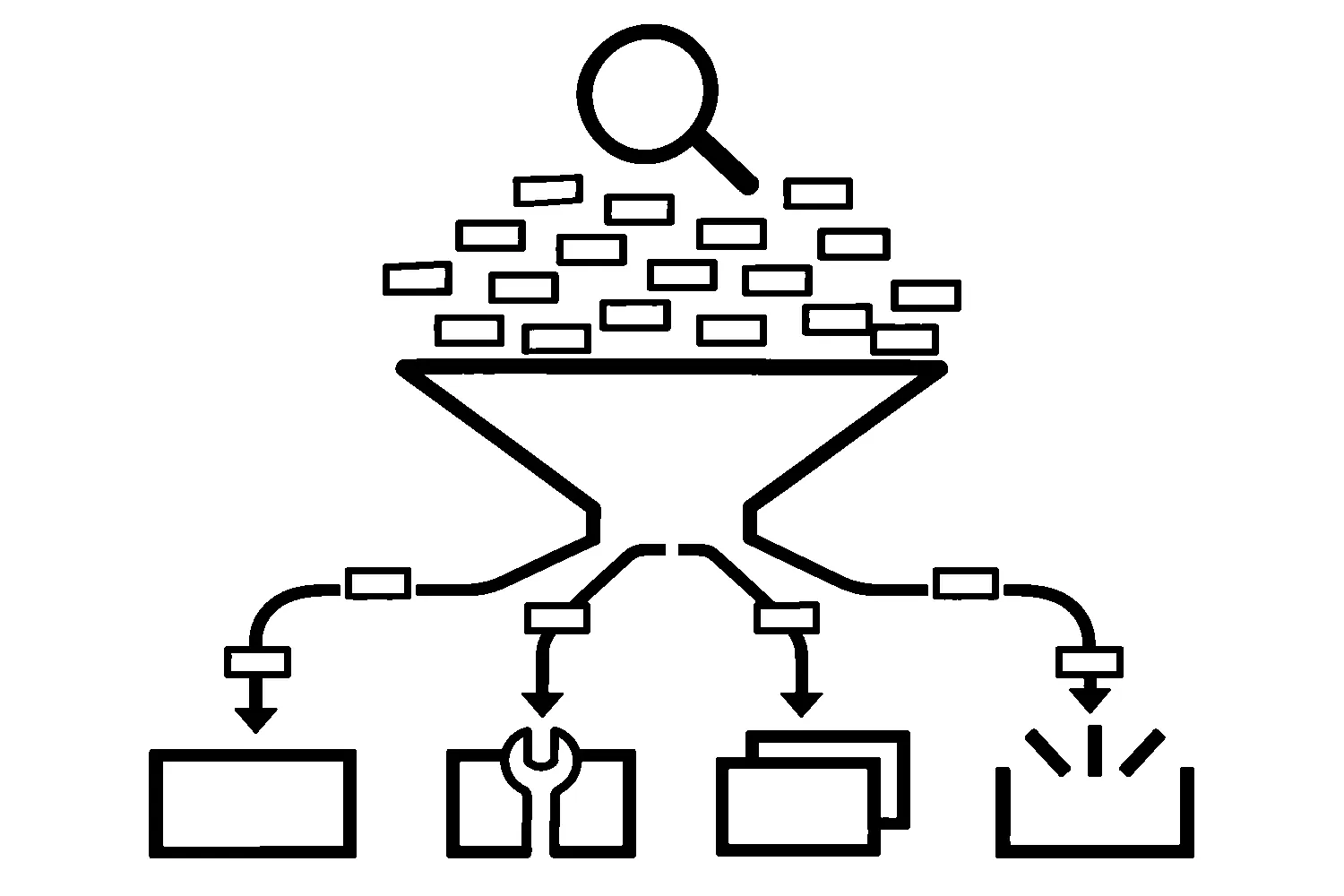
Open the Page indexing report in Google Search Console for the first time and the numbers can feel like a verdict. A chart of indexed pages, a larger-looking list of “not indexed” pages, and a table of reasons with names like “Crawled - currently not indexed.” It is easy to read that as a list of things you have done wrong.
It is not. Google’s own guidance says not to expect every URL on your site to be indexed, only the canonical pages. The job is not to clear the list. The job is to decide which entries are intended, which are defects, and which important pages are missing.
Start with a smaller question
Google’s help page for the report says that if your site has fewer than 500 pages, you probably do not need to use it. For a small site, a few searches can answer the first question: is the site, and are its key pages, indexed at all? Search for site:yourdomain.com, then for the exact address of a page you care about.
If your key pages show up, the report is a diagnostic tool for later, not a to-do list. If they do not, the report is where you find out why.
Know what “not indexed” means
Google describes the Not indexed status as covering two different situations: an indexing error, or a legitimate reason such as a page blocked from indexing by robots.txt or a duplicate page. The report lists the reason for each group of URLs, and a Source column shows whether the cause is Google or your website. Google says that in general you can fix only the issues where the source is listed as “Website.”
So the first sort is simple. Take the reason table and put each row into one of four groups.
The four decisions
1. Intended exclusions: leave them alone
Some pages should not be in the index, and the report is correctly telling you they are not. Google’s help page gives examples: an expected robots.txt rule, a noindex tag on the page, a duplicate URL, or a 404 for a page you removed and have no replacement for.
Typical examples on a small business site are thank-you pages, internal search results, login pages, and the old address of a page you redirected. Confirm the reason matches your intent, then stop. Google also notes that a page marked as a duplicate or alternate is usually a good thing, because it means Google found the canonical page and indexed that instead.
2. Defects: a page that should be indexed but is blocked or broken
This group is where real fixes live. Look for reasons that describe a page you want indexed but that Google could not use:
- Server error (5xx). Your server returned a 500-level error when Google asked for the page.
- Redirect error. Google ran into a problem following a redirect.
- Excluded by a noindex tag. The page carries a noindex directive. If you want it indexed, Google says you must remove the tag or HTTP header. Our noindex audit guide covers how to find the source of a stray one.
- Blocked by robots.txt, or by a 401 or 403 response. Google can be blocked by a rule or an access setting you did not mean to apply to public pages.
- Soft 404. The page shows a “not found” style message, or has so little content that it reads that way, but does not return a 404 status. Google recommends returning a real 404 for pages that are truly gone, and adding more information to pages that are not.
For each reason, open one example URL and use the URL Inspection tool. Google says to inspect an example URL from the reason’s detail page and, if needed, test the live version. Fix the cause on the site, then check the live page rather than the report. The report updates when Google recrawls.
3. Duplicates: make the signals agree
Several reasons describe duplicate content: “Duplicate without user-selected canonical,” “Duplicate, Google chose different canonical than user,” and “Page with redirect.” None of these is automatically an error. Google calls the first one working as intended, because Google does not serve duplicate pages.
The one to look at is “Google chose different canonical than user.” Google explains that this means it thinks your declared canonical page is not the best choice, or that the page you tested is not actually a duplicate of the one you named. Inspect the URL, compare the user-declared canonical with the Google-selected canonical, and look at the pages themselves. If the pages differ in a way that matters, that is a content question. If they are the same page at different addresses, that is a signals question, and our canonical and duplicate URL audit guide walks through it.
4. Discovery gaps: important pages that are missing or waiting
Two reasons are easy to confuse:
- Discovered - currently not indexed. Google found the URL but has not crawled it yet. Google’s description says it typically wanted to crawl it but expected that to overload the site, so it rescheduled the crawl.
- Crawled - currently not indexed. Google crawled the page but did not index it. Google says it may or may not be indexed in the future and that there is no need to resubmit the URL for crawling.
For a handful of pages, the useful response is to ask whether the page deserves to be indexed. Is it thin, a near copy of another page, or hard to reach from the rest of the site? Google says a page must be linked from a known page or listed in a sitemap for it to be found, so check that your important pages have both. Improving the page and linking to it from relevant pages is a better use of time than repeatedly requesting indexing.
Also remember the pace. Google says that when you add new content, it can take a few days for it to be indexed.
Prioritize by page purpose, not by count
A reason with 300 URLs is not more urgent than a reason with one URL if that one URL is your main service page. Rank what you find by what the page does for the business:
- Pages that bring in inquiries or calls: services, locations, contact.
- Pages that support those, such as guides and case studies that link to them.
- Everything else.
An error that touches group 1 gets fixed first. A large pile of exclusions in group 3 that match your intent gets a note and no action.
Fix, then validate once
After you fix every instance of an issue, Google’s report lets you click Validate fix. Google advises fixing all instances first, because validation stops when it finds a single remaining one, and not clicking again until validation has succeeded or failed. It also says validation typically takes up to about two weeks, and in some cases longer. You can also fix issues without validating; the count updates as Google recrawls pages.
Keep a short record of what you found, what you decided, and what you changed. When a reason shows up again next quarter, you will not have to redo the thinking. Pairing the report with the traffic and conversion measures described in our guide to SEO metrics helps you judge whether an indexing change mattered to the business.
When to ask for help
If the report shows errors on pages that matter and the cause is not clear, or the same pages keep moving between reasons, a second set of eyes saves time. We can review your indexing report alongside your robots rules, canonical tags, and sitemap as part of our SEO services. You can also contact us to request an indexing diagnostics review.
Sources
- Google Search Console Help, Page indexing report (accessed 2026-10-26).
Jeremy Johnson
Owner
Jeremy co-owns Robben Media and directs strategy for every client engagement. With a Computer Engineering degree from Missouri S&T, he brings deep technical expertise in web development, SEO, and automation. Before acquiring Robben Media in 2023, Jeremy led marketing and branch management in the mortgage industry. He believes marketing should be measured by revenue generated, not impressions reported.