

How to Run a Noindex Audit Without Breaking Search Traffic
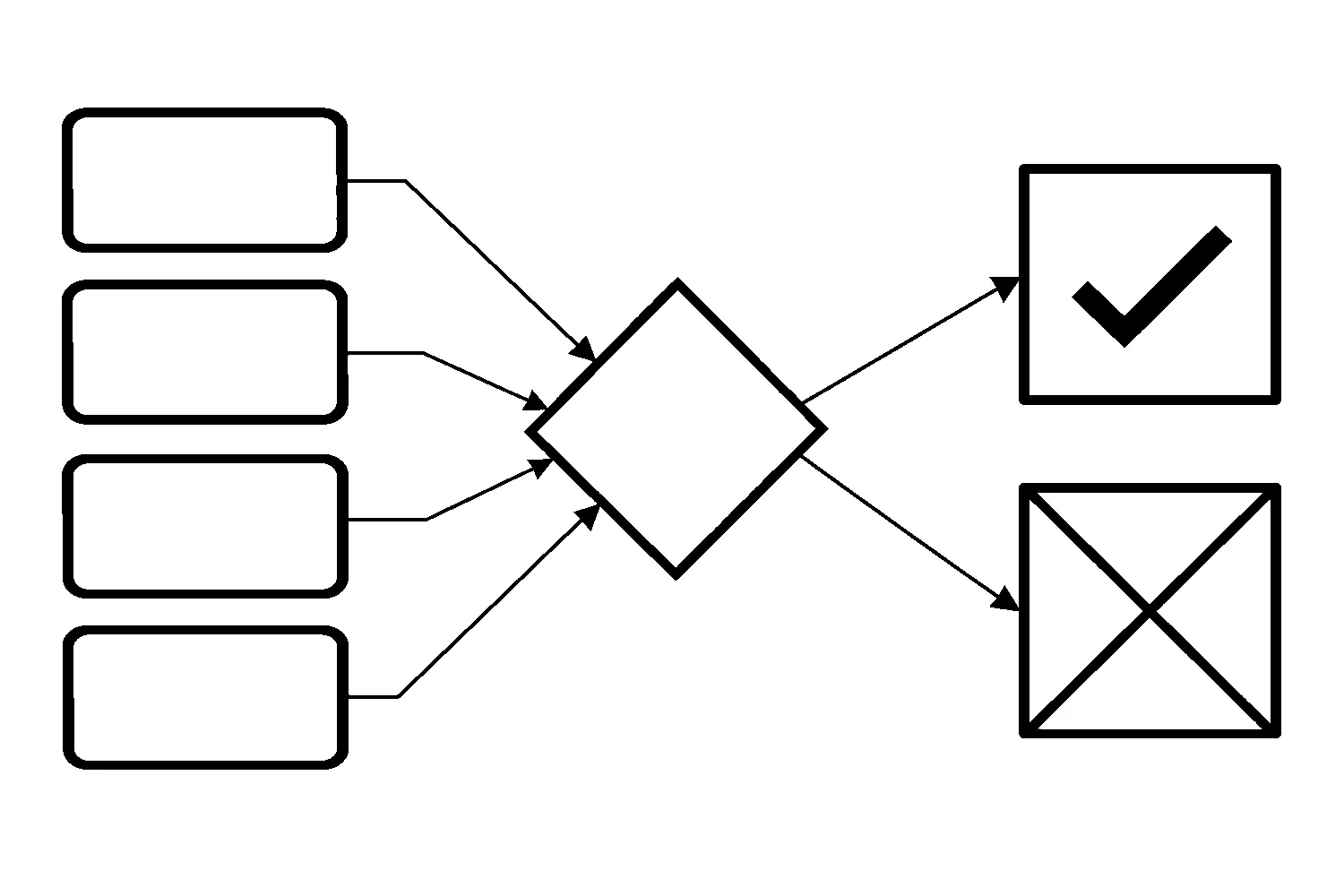
A page vanishes from Google, or never shows up, and the first instinct is to start editing: add a tag here, change robots.txt there. That is how a small problem becomes a bigger one. A noindex audit works the other way around. You read what each page is actually telling search engines, decide whether that was intended, and then change only the one control responsible.
This guide walks through that process for a small-business site. It is a planning and diagnosis aid, not a guarantee of any search result. For background on how search visibility fits together, see our plain-language explainer on what SEO is.
Know where the signals live before you touch anything
Indexing problems come from a few different places, and they do different jobs.
noindex, set in one of two places. According to Google, noindex is a rule set with either a meta tag or an HTTP response header, used to prevent indexing content by search engines that support it, such as Google. When Googlebot crawls the page and extracts the tag or header, Google will drop that page entirely from Google Search results, regardless of whether other sites link to it. Google’s noindex documentation says the two methods have the same effect. The meta tag is the robots meta tag, which Google’s specification describes as a granular, page-specific way to control how an individual HTML page is indexed and served in results. It goes in the head section of the page. The header is X-Robots-Tag.
robots.txt, which is about crawling. A robots.txt file tells search engine crawlers which URLs the crawler can access on your site. Google’s robots.txt introduction says it is used mainly to avoid overloading your site with requests, and that it is not a mechanism for keeping a web page out of Google. To keep a page out of Google, it says, block indexing with noindex or password-protect the page.
Canonical signals, which are about duplicates. When several URLs show the same or very similar content, Google’s canonicalization guidance lists redirects, rel=“canonical” link annotations and sitemap inclusion as ways to indicate a preferred URL. That is a separate question from noindex, and it needs its own check.
The practical lesson: robots.txt controls crawler access, while noindex controls indexing. Treating them as interchangeable can make the problem harder to diagnose.
Step 1: List the pages in question and the reason each should (or should not) be indexed
Start with a plain list of URLs, not a tool export. Next to each one, write the business purpose in a few words: a service page that should bring in enquiries, a thank-you page that should not appear in search, a staging copy, a filtered listing.
This is the step that stops you “fixing” something that was never broken. A thank-you page with noindex is working as intended. A service page with noindex is a problem. You cannot tell them apart from the tag alone.
Step 2: Read the live directive for each page
For every URL on your list, record what the live page actually says, in both places Google documents:
- the robots meta tag in the page’s head section, including a Google-specific version such as a googlebot meta tag
- the X-Robots-Tag HTTP response header
The header matters because, as Google notes, a response header can be used for non-HTML resources such as PDFs, video files and image files, and it will not show up if you only view the page’s HTML. Google also notes that both the name and content attributes of the robots meta tag are case-insensitive, so do not rely on an exact-case text search to find them.
If you use a content management system, Google points out that you might not be able to edit your HTML directly, and that the CMS might have a search engine settings page or another mechanism for meta tags. Check there as well, because a setting in the CMS can be the real source of a tag you cannot find in your templates.
Write down what you found, not what you expected. “No directive found” is a valid result.
Step 3: Check whether robots.txt is hiding the noindex
This is the trap that catches careful people. Google states that for the noindex rule to be effective, the page must not be blocked by a robots.txt file and must be otherwise accessible to the crawler. If a page is blocked by robots.txt or the crawler cannot access it, the crawler will never see the noindex rule, and the page can still appear in search results, for example if other pages link to it.
So a page can carry noindex and still show up, simply because robots.txt stops Google from reading the tag. Adding more noindex tags will not fix that. Google’s robots.txt guidance adds that a page blocked this way can still appear with its URL but without a description, and that if you see this result and want to fix it, you remove the robots.txt entry blocking the page.
Also note that Google says specifying the noindex rule in the robots.txt file is not supported. If an old robots.txt contains a noindex line, treat it as doing nothing for Google.
Step 4: Decide, page by page, what the right change is
Now compare your two lists, the purpose and the live directive, and sort each page into one of five outcomes:
- Directive matches purpose. Do nothing. Record it and move on.
- Noindex on a page that should be indexed. Remove the directive from the one place it comes from: the meta tag, the response header, or the CMS setting. Change only that.
- No noindex on a page that should stay out of search. Add noindex using the method that suits the content type. Do not use robots.txt alone for this, since Google says that is not a mechanism for keeping a page out of its results.
- Noindex hidden behind a robots.txt block. Decide which behavior you want. If the page should be excluded, it has to stay crawlable so Google can see the noindex. If it should be indexed, both problems need fixing: remove the robots.txt entry that blocks it, and remove the unintended noindex from every place it is set. Removing only the robots.txt block would let Google see the noindex that is still there.
- Not excluded by noindex at all. If you find no noindex and no robots.txt block but a page still is not showing as you expect, look at duplicates. Google’s canonicalization guidance says that without a specified canonical, Google will identify which version of the URL is objectively the best version to show, so the URL you expected may not be the one it chose. Check that your redirects, rel=“canonical” annotations and sitemap all point to the same preferred URL, since Google advises against specifying different canonical URLs for the same page using different techniques. That guidance also says not to use the robots.txt file or the URL removal tool for canonicalization.
The discipline here is controlled change. Change one layer at a time where you can, check the live result after each change, and keep going until every active directive agrees with the documented purpose of the page.
Step 5: Verify, then be patient
After a change, test it. Google suggests using the URL Inspection tool to see the HTML that Googlebot received while crawling the page, which confirms the directive is visible to the crawler.
Then expect delay. Google explains that it has to crawl your page to see meta tags and headers, that a page still appearing in results is probably one it has not crawled since you added the rule, and that depending on the page’s importance it may take months for Googlebot to revisit. You can request a recrawl with the URL Inspection tool. If you need a page removed quickly from results, Google points to its separate documentation on removals.
None of this promises a particular outcome or timeline. Record the date of each change so you can tell later whether a page simply has not been recrawled yet.
Keep a short audit record
For each page, keep one row: URL, business purpose, the directive found and where, whether robots.txt blocks it, the change made, and the date. A record like this lets a colleague, or you next quarter, see why a decision was made without redoing the work.
If you would rather have someone read the live directives and sort out which control is responsible, you can request an indexing-control review through our SEO service page, or contact us with the URLs you are worried about.
Jeremy Johnson
Owner
Jeremy co-owns Robben Media and directs strategy for every client engagement. With a Computer Engineering degree from Missouri S&T, he brings deep technical expertise in web development, SEO, and automation. Before acquiring Robben Media in 2023, Jeremy led marketing and branch management in the mortgage industry. He believes marketing should be measured by revenue generated, not impressions reported.